Homewhere

See inside every box without opening it.

Stick a numbered label on it. Scan the label, or just ask “Where’s the tent?”

Download on the App Store

Free. No account, no ads.Try a sample home first.

#39 #31 #25 #43 #2 #7 #37
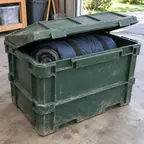
Camping crate #31, in the appIn the app
Found it: the tent.Garage › Camping crate #31
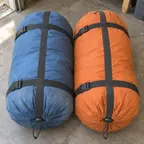
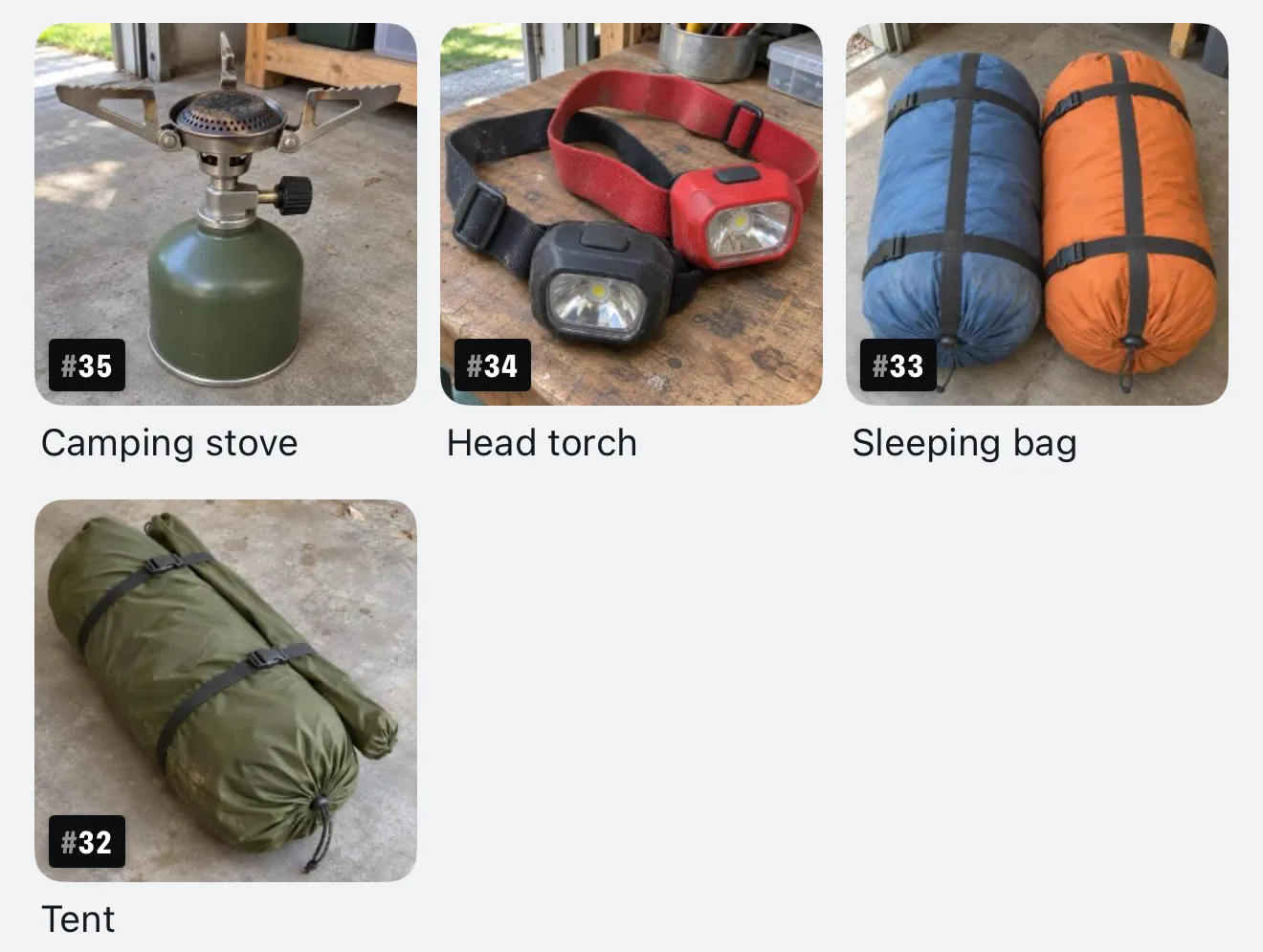
The Homewhere app showing Camping crate #31 as a photo grid: camping stove #35, head torch #34, sleeping bag #33 and tent #32.

A number on everything. Then you just look it up.

The things a spreadsheet or a notes app won’t do. Every app screen below is real; the drawings are just drawings.

#14

It suggests where things go, and says why.

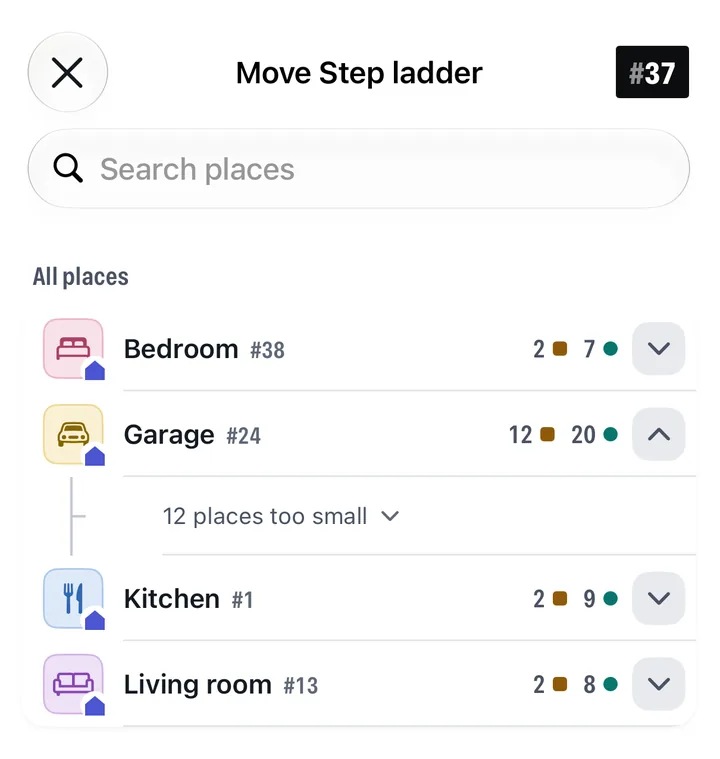
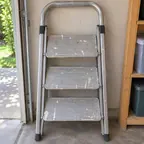
Add a new charger and it offers Cable box #14, marked Likely, next to the phone cables. Mark the step ladder a Big thing and it stops offering drawers and boxes it won’t fit, and points to the room. Nothing moves on its own.

Try it: Sample home › More to try › Put a new thing away
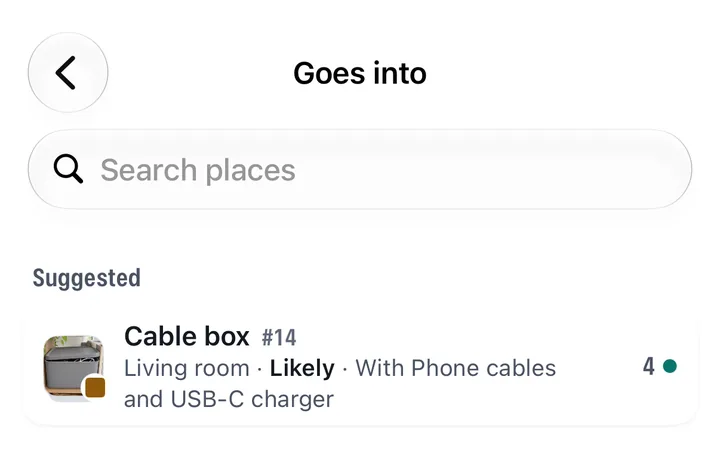
Goes into: Homewhere suggests Cable box #14 in the living room, Likely, with phone cables and a USB-C chargerMoving the step ladder #37: Homewhere folds away 12 places in the garage that are too small
#23

Ask out loud.

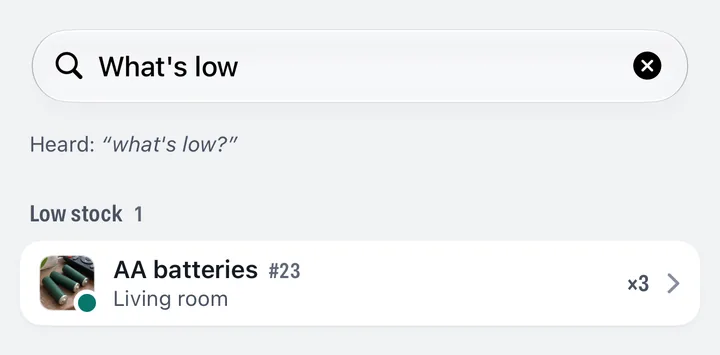
Tap Ask and say “where’s the tent?”, “what’s in the garage?”, “what did I lend to Sam?” or “what’s low?” for the shopping list. Here: AA batteries, 3 left.

Try it: Search › Ask

Asking Homewhere “what’s low?”: Low stock, AA batteries #23 in the living room, 3 left
#34

What is this? Point the camera at it.

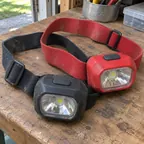
Found a stray thing at the back of a drawer? Point the camera at it and Homewhere looks for it among your own photos, so you know what it is and where it lives.

Try it: Sample home › Try these 5 things › Point at a thing (the tour brings its own photos)

YOUR PHOTOS Found: Head torchGarage › Camping crate #31
S/N

Read the plate. Skip the typing.

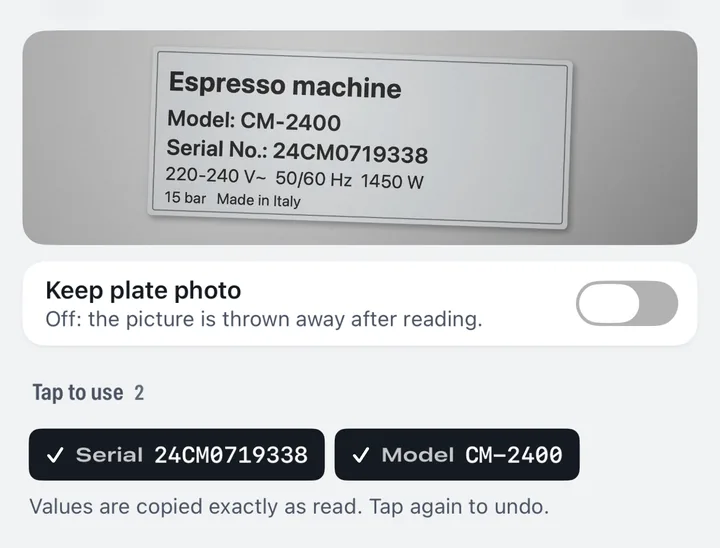
Point at a rating plate and it copies the Serial, Model, Part number, MAC, FCC ID or IMEI exactly as printed, and makes it searchable.

Try it: Sample home › Try these 5 things › Read a rating plate

Reading a rating plate in Homewhere: the Serial 24CM0719338 and Model CM-2400 are picked out, copied exactly as read
4 styles

Labels for anything, even cables.

Pick the label that fits the thing: QR and text, a tiny code, a barcode, or a cable flag that wraps around a cable.

Camping crate#31 QR and text #25 Barcode Tiny code Router#60 Cable flag
#48

Drawer maps: which drawer it’s in.

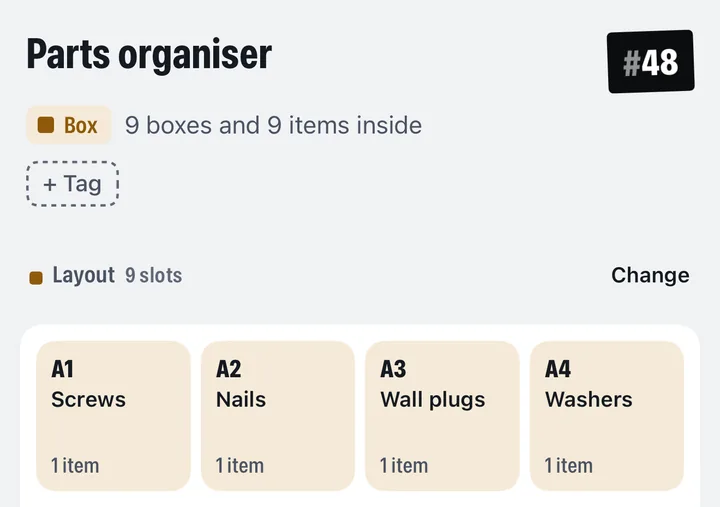
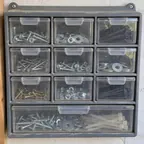
Set up a cube shelf, drawer tower or parts organiser in one go: 4 × 4 makes 16 boxes, a custom grid up to 100 drawers. Then see what’s in each drawer.

Try it: Sample home › Try these 5 things › Open the drawer map

Parts organiser #48 in Homewhere with its drawer layout: A1 Screws, A2 Nails, A3 Wall plugs, A4 Washers
×3

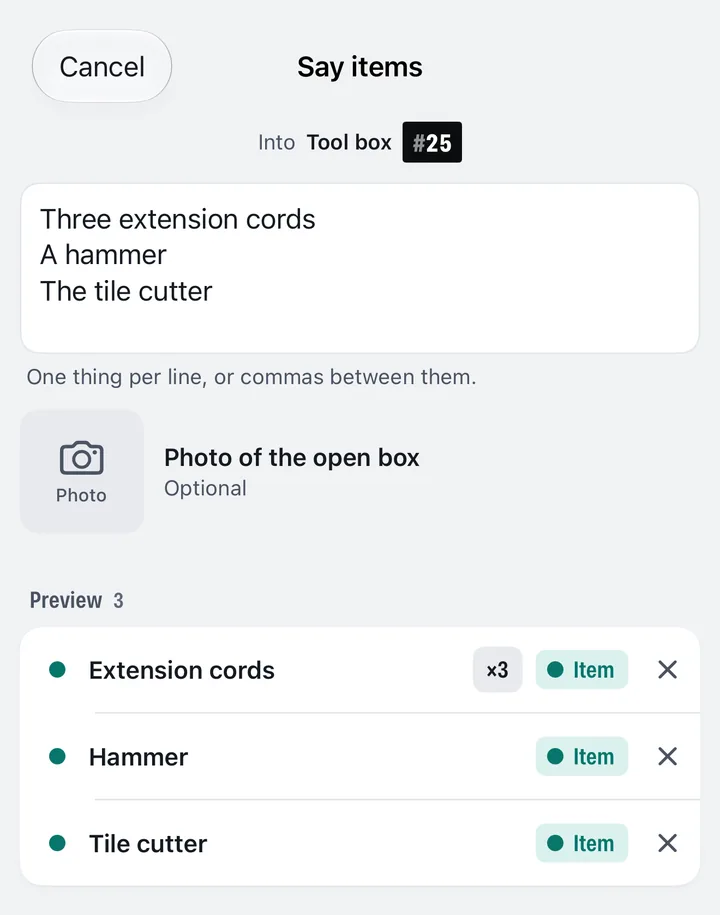
Say items: fill a box by talking.

On a box, tap Say items and list what’s inside in one go: “three extension cords, a hammer, the tile cutter”. Check the preview, then add them all.

Try it: Sample home › Garage › Camping crate › Say items

Say items in Homewhere: three dictated lines become Extension cords ×3, Hammer and Tile cutter, ready to add to Tool box #25
New in 1.5

A box on your Home Screen, the scanner one tap away.

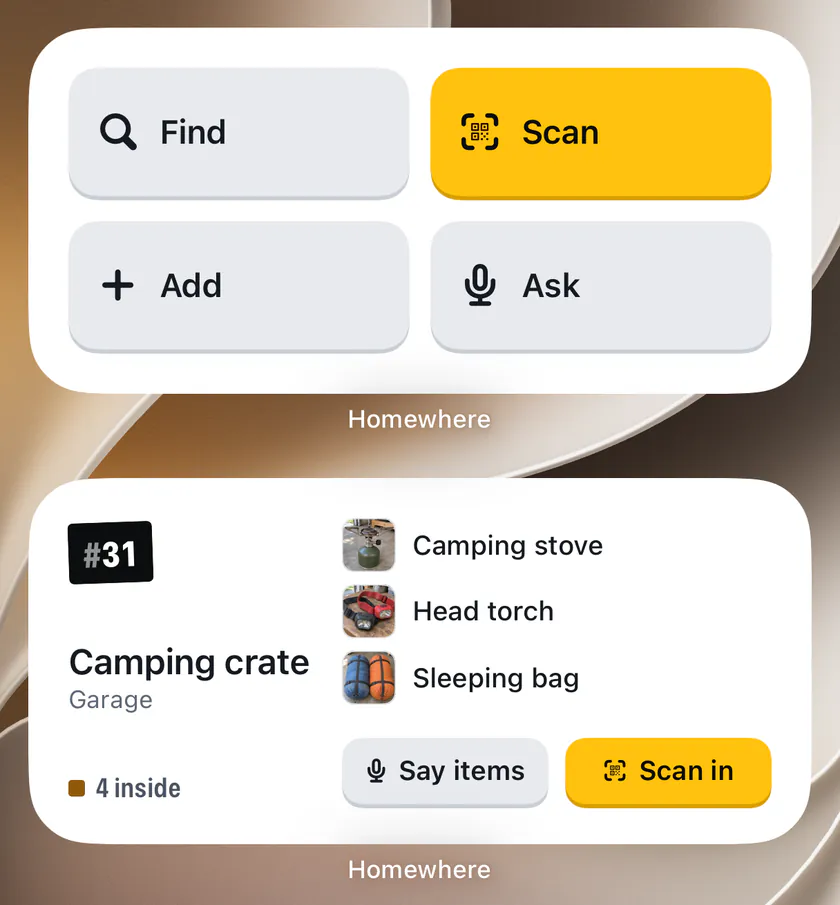
Homewhere 1.5 adds widgets, controls and quick actions, so you can see what’s in a box or start a scan without hunting for the app.

Widgets

Box or room shows what’s in a room or a box, with Say items and Scan in to put more in it. Quick actions gives you Scan, Find, Add and Ask as buttons.

An iPhone Home Screen with two Homewhere widgets: Quick actions with Find, Scan, Add and Ask, and Camping crate #31 with three of its things and the Say items and Scan in buttons.

Touch and hold the icon

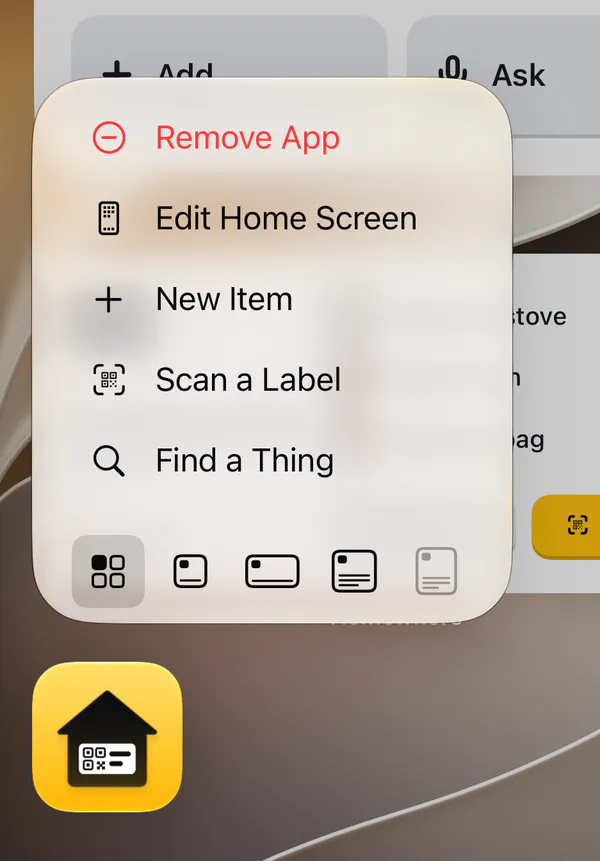
Touch and hold the Homewhere icon for Find a Thing, Scan a Label and New Item, which asks where the new thing goes.

Touching and holding the Homewhere icon on the Home Screen: New Item, Scan a Label and Find a Thing.

Controls and the Lock Screen

Put Scan, Ask or Add in Control Center, on the Lock Screen or on the Action button. The Lent & dates widget shows on your Lock Screen how many things are lent out and when your next date is.

Widgets show your own home, not the sample home. On the Lock Screen and in StandBy they show numbers and counts, never names.

Since 1.4

Siri, Shortcuts and Spotlight.

Say “Where’s the tent in Homewhere” and Siri tells you the room and the box. Your things turn up in Spotlight search, and Shortcuts gets actions like Find a Thing and Scan a Label. Turn it on in the app: it’s off until you do. Try the answers here.

Tap a question

Tent is in Garage, Camping crate 31.

Tent#32
Garage
Camping crate#31

Also here: Camping stove, Head torch and Sleeping bag

  • Tent#32 · Garage › Camping crate #31

These answers use the sample home’s names. In the app, Siri and Spotlight answer only about your own home, not the sample one.

Turn them on during setup or in Settings › Data & Privacy › Show in Spotlight and Siri. What you say to Siri may be sent to Apple to answer it. Privacy

Also: receipts and manuals on anything, 32 sticker-sheet formats, an AirPrint label printer or PDF.

Try the sample home first.

Homewhere comes with a ready-made home: a garage, a kitchen, a bedroom and a living room, already labelled. Tap “Try a sample home” and check everything above for yourself before you label a single box.

Get Homewhere, free on the App Store →